Switch Kit › Guides › AI on your own computer
Switch Kit guide 17 · 24-page PDF
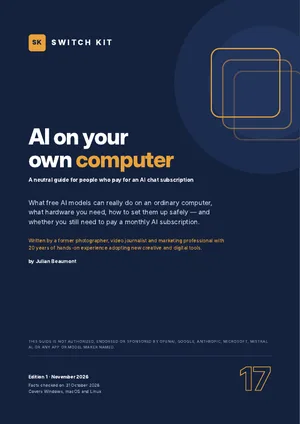
Run AI on your own computer: free, private and offline
Free AI models now run on ordinary laptops and desktops, offline and privately. This guide shows what they can really do, what your machine can handle and whether you still need a monthly AI subscription.
Short answer
With 16 GB of memory, a laptop or desktop can run good 8-billion-parameter AI models offline using free apps such as LM Studio or Ollama. Rule of thumb: about 0.5 to 0.6 GB of memory per billion parameters for a compressed model. Local AI is private and free to run, but a step below the best cloud services.
What to know before you switch
- 16 GB of memory is the everyday sweet spot; 8 GB runs small models only.
- No graphics card required; Apple-silicon Macs work especially well.
- Free apps: LM Studio (easiest), Ollama (minimal), Jan, AnythingLLM, Open WebUI.
- Memory needed is about 0.5 to 0.6 GB per billion parameters (4-bit), plus 20–30%.
- Keep Ollama on its default local-only setting: in January 2026 researchers found more than 175,000 Ollama servers exposed online.
Facts checked on 31 October 2026. Prices and versions change; check the official sites.
Is it right for you?
A good fit if…
- You pay for an AI chat subscription and want to spend less.
- You care about privacy for documents.
- You have a computer with 16 GB of memory or more.
Better to wait if…
- Your computer has 8 GB of memory or less.
- You need the very best reasoning on hard tasks every day.
How to start with local AI in five steps
- Check your memory16 GB is the everyday sweet spot; 8 GB runs small models only.
- Install a free appLM Studio if you like clicking, Ollama if you want something minimal.
- Pick a model that fitsChoose a 4-bit version of the size recommended for your memory.
- Try your real tasksWriting, summarising, translating and your own documents.
- Decide about your subscriptionKeep, downgrade or cancel based on what local AI handles well.
The guide expands each step with checklists and a dated plan.
Inside the guide
Cloud AI versus local AI · a self-assessment · what local AI does well and less well · what your computer can run, with a simple memory formula · upgrading or buying hardware · the free apps compared (LM Studio, Ollama, Jan, AnythingLLM, Open WebUI) · choosing a model · two step-by-step setup routes · everyday uses with ready-made prompts · chatting with your own documents · images, voice and vision · privacy and security · a break-even calculation · leaving or downgrading your subscription · the hybrid approach · a two-week plan · a glossary · a printable checklist.
Printable A4 PDF in English · instant download · checklists you can tick · written by Julian Beaumont, 20 years of hands-on experience with creative and digital tools.
€9PDF, VAT included
Get the guide · €9Frequently asked questions
Can I run ChatGPT-like AI on my own computer?
Yes. Free open models run offline with apps like LM Studio or Ollama. They are a step below the best cloud models but very capable for writing and summarising.
How much RAM do I need to run AI locally?
16 GB for good 8B models; 32 GB or more for larger ones. Plan about 0.5–0.6 GB per billion parameters.
Do I need a graphics card?
No. It runs on the processor, more slowly. A graphics card or an Apple-silicon Mac makes it much faster.
Which app is best to start with, LM Studio or Ollama?
LM Studio if you prefer clicking and browsing models; Ollama if you want something minimal that other apps can connect to.
Is local AI really private?
Local models run on your computer, so prompts stay there. Some apps also offer optional cloud features; switch those off to stay fully local.
Can local AI read my documents?
Yes. Several apps let you drag in a file or index a folder so the model answers from your documents.
Next steps
New to ArtCraft? Start with the free overview of all thirteen apps.